-
First, note all the drives on your computer.
My computer has a floppy drive, a hard drive, a CD-ROM, a 100MB external zip
drive, and a 650MB ZIP CD Burner. That is 5 drives. So you must have 5
drives all together if you have 5 drive letters in "My Computer".
-
You must get all the drive ICONS. The best
way to do this is to press "Print Screen" while in MY COMPUTER and
then go into PAINT and press CTRL-V (paste). This will show you the whole
screen you made a snapshot of. So, no, if you took the shot at 5:30pm, it
will always say 5:30pm; the clock will NOT still tick on! :)
-
Make a selection box around the icons and
press CTRL-C (copy).
-
Click File>New and when you are asked to
save the file, say no. Then press CTRL-V. You should have something like
this:

-
Then afterwards, you can change the icon or text labels to
another icon or change the font and/or font size.
-
Then line up the icons VERTICALLY.
-
Change the background color if you want. Then save the file
as coolmc1.jpg. Make sure you stored these files in a folder named coolmc or
something like that.
-
Keep the file open. Put boxes around each icon with the
color white. Or you can do it the way I did: make it look like a bevel or a
button. Save the file again as coolmc2.jpg.
-
Keep the file open. Change the color of the boxes or make
the bevel colors the opposite for each side. Save the file as coolmc3.jpg.
You should have something like this (3 separate files):
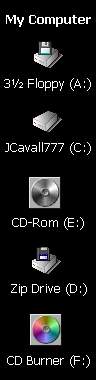
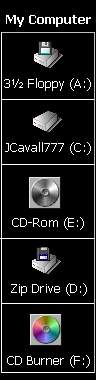
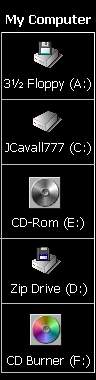
-
This is the part where you need Fireworks or a program that
can do frames and states for webpages. Load Fireworks now.
-
For frame 1, have coolmc1.jpg, and for frame 2, coolmc2.jpg,
and so on. To add the images to the file, click Insert>Image.
-
Make sure each image is lined up for each frame in the same
spot on the canvas.
-
Put the hotspots in a square that covers the square around
each drive (you should be on frame 2 or 3 so you can see the square). Try
not to over lap the hot spots.
-
Go to frame 1. Then click WIndow>Behaviours for each one
and click the + arrow on the little window that pops up and select
"Simple Rollover".
-
Then, go to frame 2. Double click the hotspot. Then click
the + and select "Nav Bar Down". Then make sure "frame
3" is selected from the drop down box (where it says "Frame
No.").
-
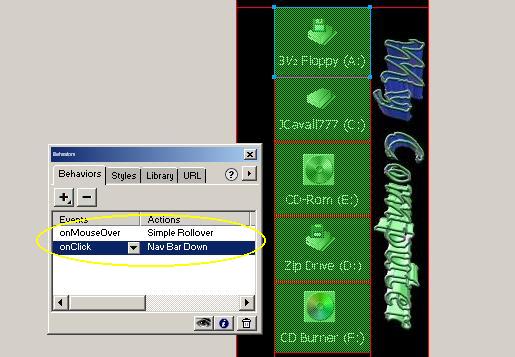
Do this for all of them. If you have 5 drives, you should
have 5 hotspots that all look like this when you click
"Behaviors":
-
You can see that I have a "My
Computer" graphic sideways there. I made that in a cool program called
Xara 3D. You should download it, it's great. Those greenish colored boxes
are the hotspots. When you put your mouse over those areas where the hotspot
is, the "onMouseOver" command refers to frame 2 to show the part
of the coolmc2.gif. And the "onClick" one refers to frame 3 to
show the part of the coolmc3.gif.
-
After all this is done, you can add any
other images to it, but make sure they do not overlap the hotspots. That
would cut some of the images out of their hotspots. See the section
"OTHER COOL STUFF" for more things you can do with the Cool MC.
-
Save your work.
-
Export the file to the directory (coolmc)
and make sure you have it in the FrontPage format. All the images that the
file needs will be stored there. The main file will be stored as coolmc.htm.
The workfile will be saved as coolmc.png, which is the file you open in
Fireworks to edit it.
-
Once you have finished all that, exit
the program and make a new active desktop item. Select the file coolmc.htm.
-
Adjust the file to only take up part of
the screen, or just do it however you like it. To make sure you don't
accidently close it or see the adjustable bars and things like that, right
click on the desktop and click Active Desktop>Lock Desktop Items. Then
you are done!!!!
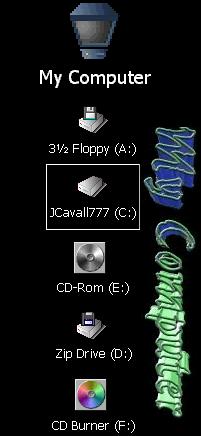 Created
using FIREWORKS and PAINT. You put your mouse over the icon with the drive
name/letter and click it and it opens up the drive. It helps so you don't have
to click that My Computer icon every time you want to check your drives, loading
faster too. And it is a cool alternative to just putting plain icon links on the
desktop.
Created
using FIREWORKS and PAINT. You put your mouse over the icon with the drive
name/letter and click it and it opens up the drive. It helps so you don't have
to click that My Computer icon every time you want to check your drives, loading
faster too. And it is a cool alternative to just putting plain icon links on the
desktop.